
How to Improve Squarespace SEO in 7 Easy-to-Follow Steps
The Built-In Foundation: How Squarespace Powers Technical SEO
To improve Squarespace SEO, you must configure site-wide search settings, write custom page titles and meta descriptions, connect Google Search Console, optimize images with descriptive alt text, establish a clear heading hierarchy, set up 301 redirects, and format content for AI discovery. While modern search engines prioritize fast loading times, clean HTML output, accessible design, and mobile-friendly layouts, Squarespace provides these technical requirements automatically, allowing you to focus on high-impact content and client acquisition.
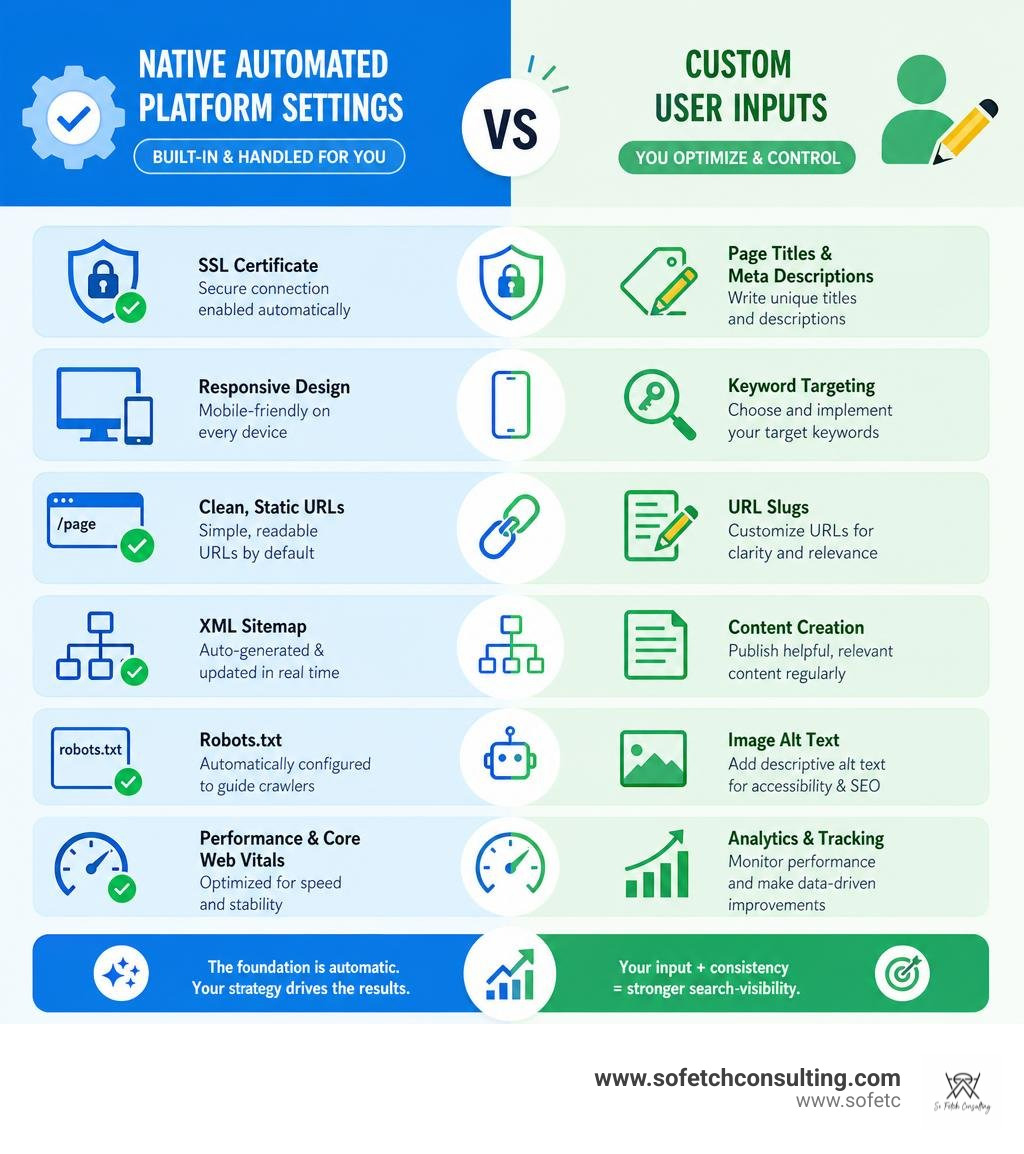
When you launch a site on the platform, your technical baseline is already configured. Every website receives an automated SSL certificate, responsive design stylesheets, clean static URLs, and automated XML sitemaps. You can explore the core technical foundation provided through Squarespace SEO - Built-in SEO Tools - Squarespace to see how native engineering eliminates the need to install, update, and troubleshoot third-party plugins.
Semantic HTML and Auto-Generated Sitemaps
Search engine crawlers rely on structured code to parse your content efficiently. Squarespace generates semantic HTML5 markup that clearly establishes layout landmarks like headers, main content areas, navigation menus, and footers. This clean codebase prevents crawler confusion and ensures search bots can navigate your site without getting trapped in redundant scripts.
Squarespace automatically manages your site's indexing map through an auto-generated sitemap hosted at yourdomain.com/sitemap.xml. Whenever you publish a new blog post, create a service page, or update a product, the platform updates this file in real time. It also generates a standard robots.txt file that guides search crawlers toward your public pages while protecting sensitive administrative sections from unnecessary crawling.
Native Mobile Optimization and Core Web Vitals
Google uses mobile-first indexing, meaning search engines crawl and evaluate the mobile version of your site to determine its search rankings. Unlike platforms that allow users to completely strip out desktop content on mobile layouts, Squarespace maintains structural parity between mobile and desktop views.
This responsive design framework guarantees that text blocks, headings, images, and structured data remain identical across all screen sizes. Because the platform natively handles CSS breakpoints, image resizing, and font scaling, your site satisfies vital user experience benchmarks and Core Web Vitals metrics right out of the box.
The 7-Step Squarespace SEO Implementation Framework
While built-in tools handle the infrastructure, ranking on page one requires intentional execution. Over 137,000 learners have enrolled in guided courses for Squarespace optimization, demonstrating that site owners need a practical, step-by-step workflow to maximize their organic visibility.
| SEO Task / Setting | Automated by Squarespace | Requires Manual Optimization |
|---|---|---|
| SSL Certificates & Security | Yes (Native automatic setup) | No |
| XML Sitemap Generation | Yes (Updates automatically) | No |
| Responsive Mobile Layouts | Yes (Dynamic viewport scaling) | No |
| Page Titles & Meta Descriptions | Basic fallback from page name | Yes (Custom copy under character limits) |
| URL Slug Formatting | Auto-generated from title | Yes (Remove stop words, keep concise) |
| Google Search Console Verification | Integration bridge available | Yes (Connect account and submit sitemap) |
| Image Alt Text & Compression | Auto WebP delivery | Yes (Descriptive labels and file naming) |
| On-Page Heading Architecture | Semantic HTML structure | Yes (Strict H1, H2, H3 hierarchy) |
| 301 URL Redirects | No | Yes (Manual mapping in URL Settings) |
Step 1: Execute the Pre-Launch and Post-Launch Squarespace SEO Checklist
Before announcing your website to the world, you must review your site-wide search settings to ensure you are not broadcasting placeholder text or unconfigured branding to search engines.
Start by navigating to your dashboard and checking the SEO Appearance panel under Marketing settings. Here, establish your site-wide title format. A standard best practice is using %p | %s, which automatically displays the individual page title followed by your overarching business name.
Next, complete your Business Information settings under Settings. Fill in your physical address, business phone number, operational hours, and primary contact email. Adding complete location details allows Squarespace to generate basic LocalBusiness structured markup, giving your business a strong foundation for local search queries and map pack results.
Step 2: Customize Page Titles, Meta Descriptions, and URL Slugs
Automated title tags and default meta descriptions pulled from page headers rarely convince searchers to click. Every public page on your website deserves unique, hand-crafted metadata tailored to search intent.
To customize page metadata:
- Open the Pages panel in your Squarespace dashboard.
- Click the gear icon next to any page to open its Page Settings.
- Select the SEO tab from the sidebar menu.
- Enter an SEO Title that stays under 60 characters to avoid truncation in search engine result pages. Include your target keyword naturally near the front.
- Write an SEO Description between 120 and 155 characters. Clearly summarize the value of the page and include a direct call to action.
- Open the General tab to optimize your URL Slug. Keep slugs short, hyphenated, and focused purely on core keywords (for example,
/dog-training-packagesrather than/our-company-offers-dog-training-packages-in-2026).
Step 3: Connect Google Search Console and Accelerate Indexing
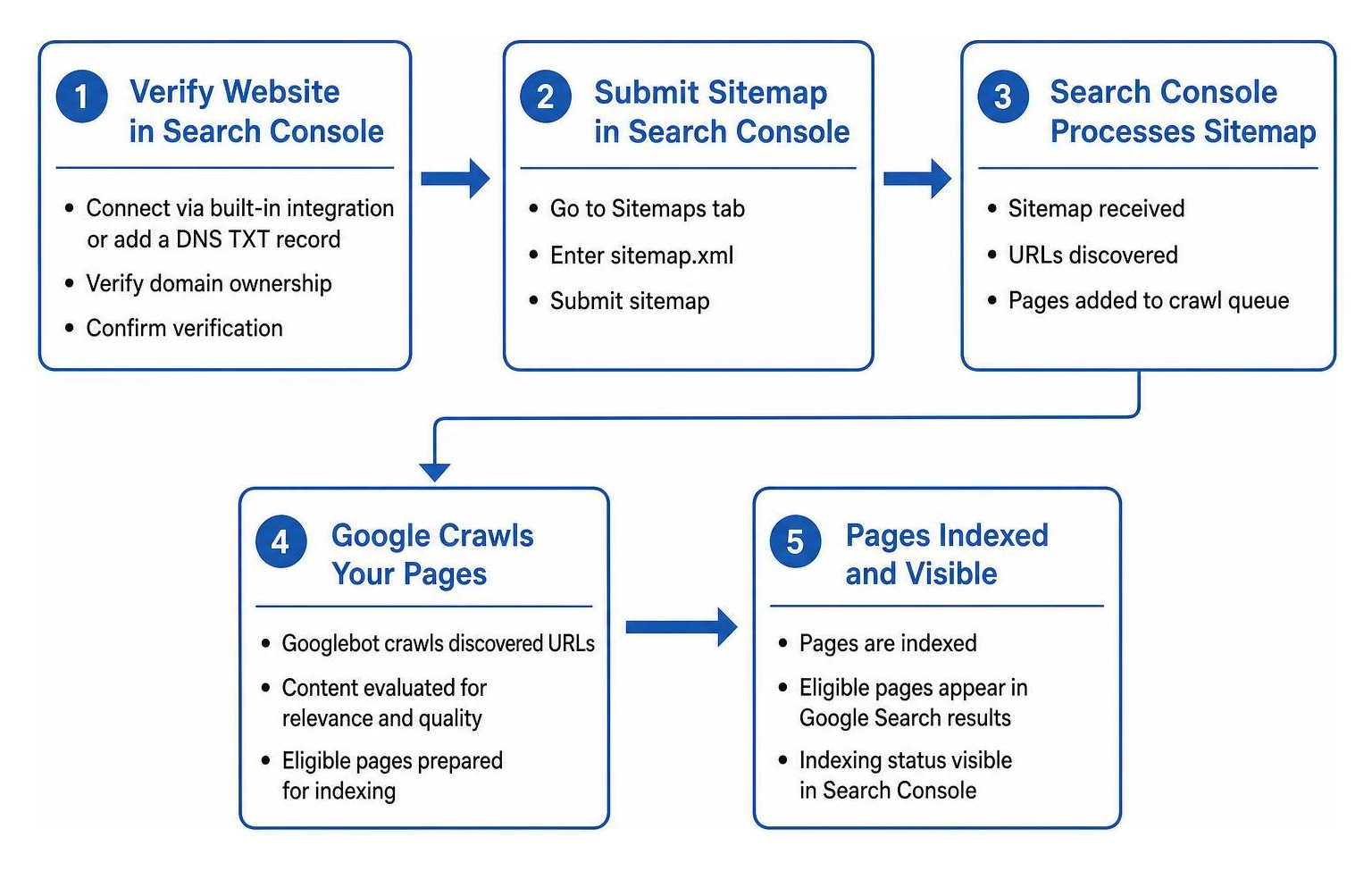
Squarespace automatically produces an XML sitemap, but search engines do not know your new pages exist until they discover them. To speed up discovery, verify your domain directly with Google Search Console.
Connect your website through the built-in integration panel or by adding a DNS TXT record at your domain provider. Once verified, submit your sitemap by navigating to the Sitemaps tab in Search Console and entering sitemap.xml. For a step-by-step technical walkthrough on fast-tracking crawling, review the guide on How to Get Your Squarespace Site Indexed on Google (2026 Guide) | IndexBolt.
Step 4: Optimize Images with Descriptive Alt Text and Fast Formats
Visual assets make your site engaging, but uncompressed or unlabeled images slow down load times and hide valuable context from search bots. Squarespace automatically creates responsive image variants and serves modern formats, but you must provide descriptive accessibility tags.

To optimize your media:
- Rename raw files on your computer before uploading (for example,
puppy-potty-training-schedule.jpginstead ofIMG_0492.jpg). - Keep initial image file sizes under 500 KB to maintain rapid page rendering.
- Add accurate image alt text within the image block settings. Describe the visual content clearly for screen readers and search crawlers without stuffing unrelated keywords.
- Review your site with built-in audit capabilities. You can explore how to Boost Your Site’s Visibility with Built-in SEO Features - Squarespace to find missing metadata and audit image tags across your existing pages.
Step 5: Structure On-Page Content and Schema Markup
Well-structured content helps search engines evaluate page quality and topic depth. Maintain a strict heading hierarchy across every page:
- Use exactly one H1 tag per page that states the primary topic clearly.
- Organize major content sections with H2 tags.
- Break down detailed subtopics using H3 tags.
- Never use heading tags purely for visual styling or decorative callouts. Use standard paragraph styling or design blocks for emphasis instead.
Squarespace automatically injects schema markup for blog posts (Article schema) and ecommerce products (Product schema including price and availability). For service pages, portfolio galleries, and index pages, avoid publishing thin content. Ensure every page contains at least 200 to 300 words of crawlable body copy explaining what your business offers.
Step 6: Set Up 301 Redirects and Monitor Ranking Fluctuations
Whenever you update a URL slug, delete an obsolete page, or migrate from an older website, you must preserve existing search equity by implementing 301 redirects. Without redirects, visitors and crawlers hit 404 errors, causing search rankings to decline.
Squarespace provides a URL Mappings tool located under Settings > Advanced > URL Mappings. Add redirects line by line using standard mapping syntax:
/old-page -> /new-page 301
If you are moving entire directories of content, use wildcard syntax to route traffic efficiently:
/old-blog/* -> /blog/{1} 301
After publishing significant updates, check Google Search Console weekly to monitor crawl stats, track impressions, and resolve any indexing warnings promptly.
Step 7: Adapt Your Squarespace SEO for AI Overviews and Search Discovery
Search behavior is shifting toward conversational queries, AI-generated summaries, and generative discovery engines like ChatGPT and Google AI Overviews. These platforms extract concise, factually dense answers directly from well-structured websites.
To ensure AI engines cite your content:
- Structure content with question-based headings followed immediately by clear, direct 2 to 3 sentence answers.
- Use bulleted lists and numbered steps to outline actionable processes.
- Demonstrate first-hand experience by including clear case studies, client results, and detailed service workflows.
- Keep your business name, address, phone number, and pricing expectations consistent across your entire digital footprint.
Frequently Asked Questions About Squarespace SEO
Why did my website ranking drop after updating my Squarespace site?
Temporary ranking fluctuations are normal after major website redesigns or structural changes. When you update page copy, alter heading structures, or change URLs, search engines must re-crawl and re-evaluate your pages.
If your rankings drop and fail to recover within three to four weeks, check for common technical issues:
- Ensure you did not accidentally change a live URL slug without creating a corresponding 301 redirect in URL Mappings.
- Verify that you did not remove core keyword-rich text blocks in favor of purely visual image layouts.
- Confirm that your pages still have custom SEO titles and descriptions configured rather than reverting to blank template defaults.
- Check Google Search Console for sudden indexing errors, security flags, or accidental noindex code injection tags.
Can Squarespace websites rank competitively against WordPress sites on Google?
Yes. Search algorithms do not give preference to specific content management systems. Google evaluates websites based on content relevance, user experience, site speed, mobile accessibility, and backlink authority.
While WordPress offers infinite plugin flexibility for granular technical control, Squarespace delivers a clean HTML5 foundation, automated sitemaps, built-in mobile responsiveness, and enterprise-grade hosting security without plugin maintenance overhead. A well-optimized Squarespace website with high-quality content will consistently outrank an unmaintained WordPress site.
Does Squarespace automatically add structured data for products and blog posts?
Yes. Squarespace automatically generates structured JSON-LD schema markup for several native content types:
- Blog Posts: Injects Article schema containing headlines, author information, publication dates, and featured images.
- Store Products: Generates Product schema detailing item names, descriptions, pricing, currency, and real-time inventory availability.
- Events: Adds Event schema with dates, locations, and descriptions.
If your business requires specialized custom schema such as FAQ markup or detailed Service schema, you can manually inject custom JSON-LD code into the page header settings on Business and Commerce plans.
Maximize Your Organic Visibility with Strategic Optimization
Building a beautiful website is only half the battle. To turn your digital presence into a consistent client generation engine, your website must be easily discoverable by search engines and compelling to real visitors.

At So Fetch Consulting, we help small businesses, dog trainers, pet care providers, educational institutions, non-profits, and local organizations build sustainable organic traffic. We combine technical Squarespace optimization with proven content frameworks from The S3 System™ to ensure your business stands out across both traditional search results and emerging AI discovery engines.
Ready to attract more qualified clients and grow your online visibility? Explore our expert Squarespace optimization services to build a custom marketing strategy that delivers measurable, long-term growth.
